Add & manage players
Build your roster — add players with optional contact details, rename them, and archive the ones who move away.
Players are the names on your roster. They don't need accounts — anyone who picks up a cue at your place can be a player. (If a player also wants to log games from their own phone, that's what invites are for.)
Add a player
- Open the Players tab.
- In the add-player form, type their name.
- Optionally tap Add contact details (optional) to record a phone number, email, or date of birth.
- Tap the add button — they appear on the roster instantly.
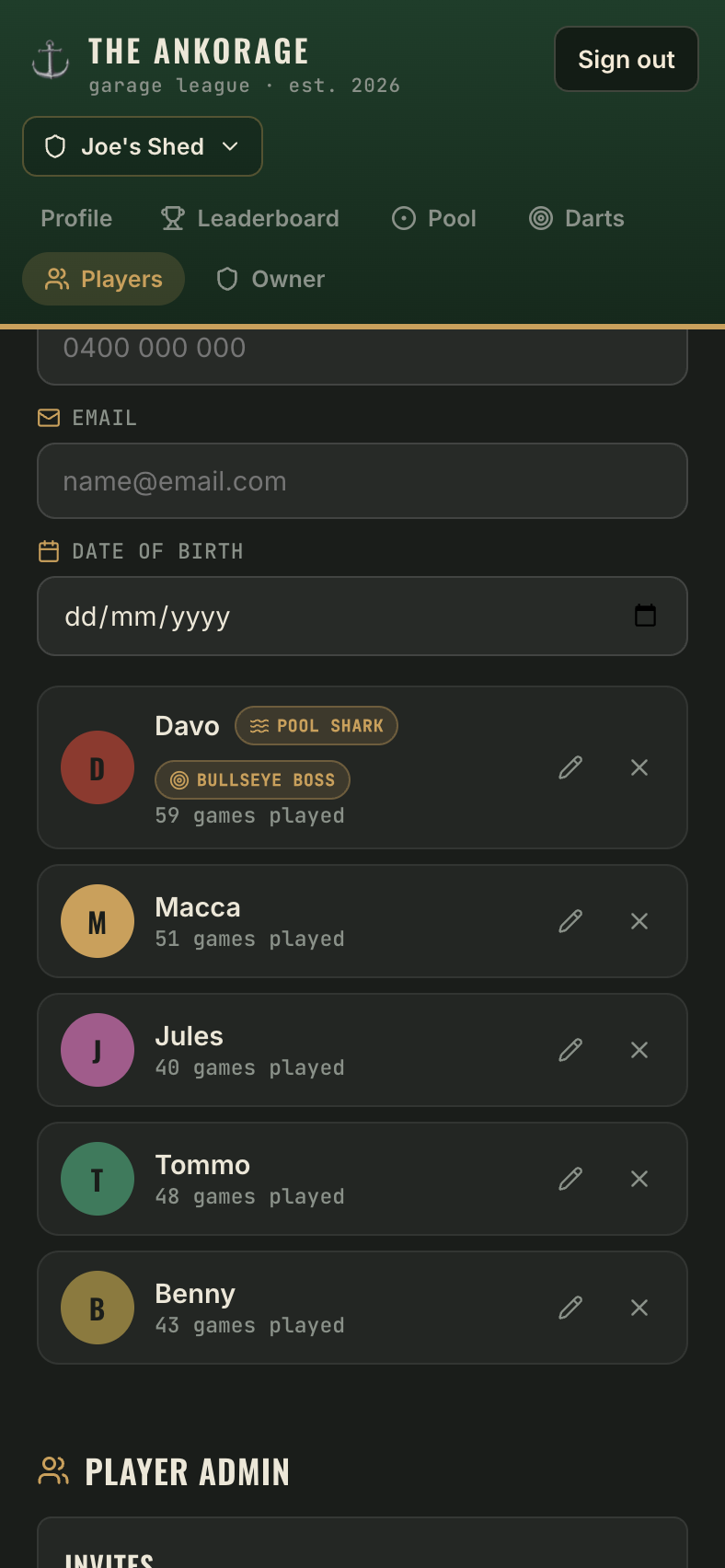
You can also add players mid-setup when starting a game: every game setup screen has a New player… field.
The roster
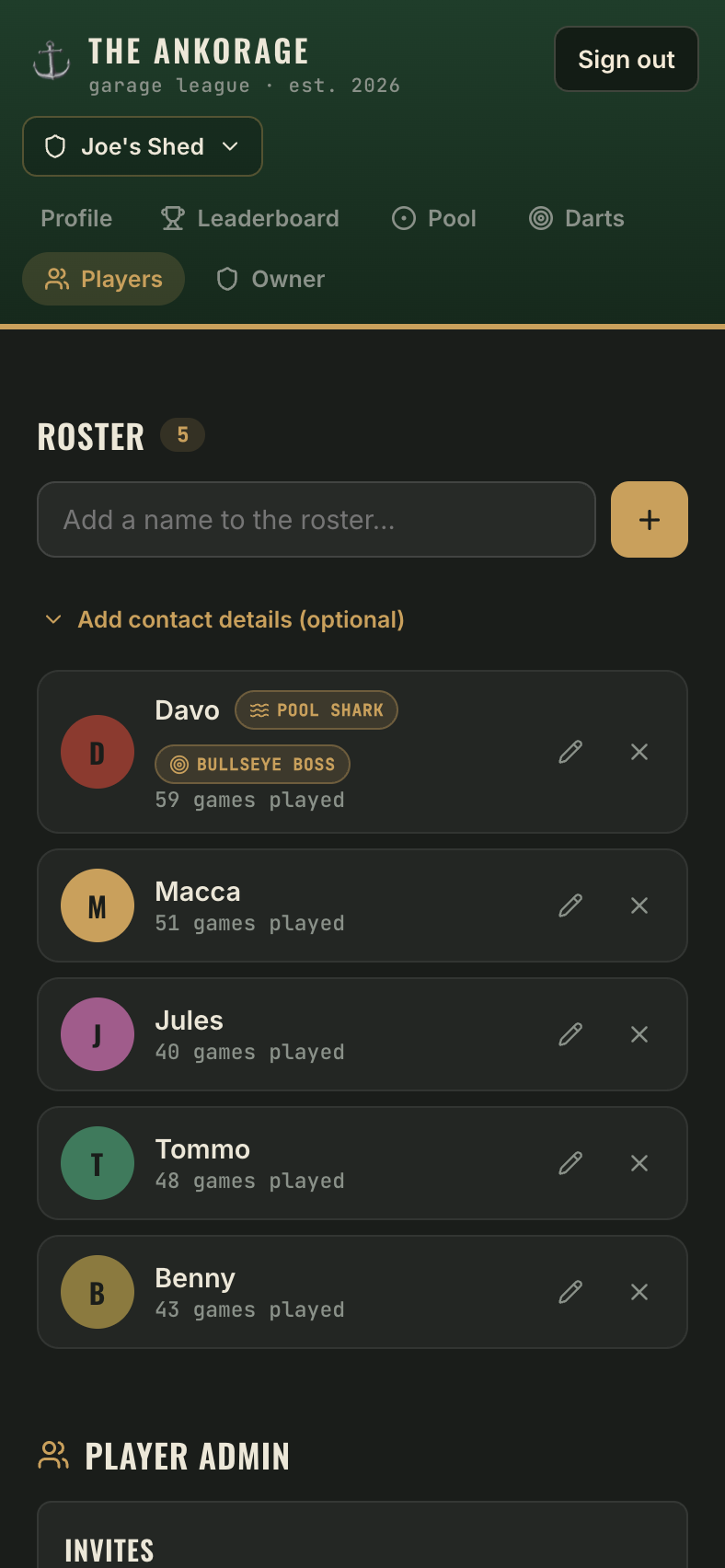
Each card shows:
- An avatar built from the player's initials (with its own colour).
- How many games they've played.
- Champion badges — the current #1 in pool wears the Pool Shark badge, and the darts #1 wears Bullseye Boss.
Tap any card to open their full player profile.
Rename or remove a player
Owners can manage the roster directly from the cards:
- Rename — tap the pencil icon on a player's card and type the new name.
- Remove — tap the X on the card. This archives the player: they disappear from the roster and game setup, but all their logged games and history are kept, so old results still read correctly.